Tuesday, June 24, 2014

SAMSUNG SECRET CODES


*#1111# S/W Version
*#1234# Firmware Version
*#2222# H/W Version
*#8999*8376263# All Versions Together
*#8999*8378# Test Menu
*#4777*8665# GPSR Tool
*#8999*523# LCD Brightness
*#8999*377# Error Menu
*#8999*327# EEP Menu
*#8999*3825523# Don't Know.
*#8999*667# Debug Mode
*#92782# Phone Model (Wap)
#*5737425# JAVA Mode

Monday, June 23, 2014

HOW TO OPEN PAYPAL ACCOUNT IN NIGERIA


What is PayPal?
PayPal is a form of internet banking or an international e-commerce business, that allows payment and money transfers to be easily made through the internet. In other words, with PayPal service, you can pay, easily send money (Both foreign and local transfer), and accept payments without exposing your financial details. It's also known as the most secured internet banking business that enables you pay with flexibility (through the use of debits and credits card), and it's transaction means is the fastest.
Lately, there was a controversy about the restriction of the Nigerians from using PayPal. Most Nigerians (Especially tech bloggers) did signed a petition against that controversy at this page, and now, we are happy to inform you guys that the PayPal internet banking is now available in Nigeria.

Thursday, May 29, 2014

10 MOUSE TRICK YOU HAVE NEVER TRIED


The Mouse as an input device was one of the coolest inventions in the history of computers. It makes GUI so easy to handle that most of us prefer to use it over keyboard. But then, how many of us really use the mouse to its fullest extent?
Whenever we feel that we need to click, we press the mouse button (a true replacement of the Enter key). Actually, we use the mouse to perform very little and I say so because we do not know the inner potential and are unaware of many tricks associated with it. However, there are few on top of my head right now that I would like share with our readers.

1. Holding Shift key to Select Text

Most of know that we can select contiguous files and folders by holding the Shift key and clicking on the first and then the last file/folder. This also applies to selecting text on documents like MS Word, Notepad or any other text editor.
All you need to do is click on the first character, then press the shift, point to the last character, click there and release the Shift key.

2. Holding Ctrl key to Select Multiple Text

Have you ever wanted to select multiple pieces of text on a document? What do you do then? Here’s the answer. Keep the Ctrl key held while selecting text. Again, keeping it pressed, select another piece of text; select the third piece of text and so on.

3. Holding Shift Shows Extended Context Menu

All files and folders are bestowed with a right-click context menu which allows us to perform certain action on the files/folders. Did you know that there are some hidden options in it?
If you press the Shift key while doing a right-click you will be presented with an extended menu with those hidden options.

4. Zoom In and Zoom Out

All applications- image viewers, document editors, browsers and even the explorer allow you to zoom in and zoom out. While most of them have keyboard shortcuts or a dedicated tool to support that, some have none.
You can use the mouse scroll to for all zooming activities along with the Ctrl key kept pressed. Never tried? Try it right now!

5. Window Tips with Mouse

Many people double click on the center of the title bar in order to maximize the said window. Give it a try if you were unaware of it.
But the smarter trick is in closing a window by double clicking on the left end of the window title bar.

6. Hold Ctrl to Open a Link in New Tab

Whenever we click on links, some open in the same tab, some open on a new tab and others open in a new window. We can always right-click on the link and select our desired behavior.
If your regular choice is Open in New Tab you can emulate the same behavior by holding the Ctrl key and clicking on the link.

7. Closing Browser Tabs

Left button of the mouse is not working? And if you do not know the keyboard shortcut to close a browser tab, what are you going to do?
Simply press the mouse scroll by pointing on the middle of a tab and see what happens.

8. Activate Mouse ClickLock

This feature relieves you from keeping the mouse button pressed for performing activities like text selection and moving files of folders. It can be really useful for laptop users when their touchpad is not functioning.
Learn more on how to fix mouse drag issues by activating ClickLock.

9. Want More Drag Drop Options?

All of us are accustomed to the drag and drop activity of the mouse. But have you ever tried doing the same with the mouse right key?
You will see added options to Move Here, Copy Here and Create shortcuts here.

10. Hold Alt to Select Columnar Text

Have you ever felt the need to select text vertically on a Word document? And did you end up doing that one by one, wasting lot of time?
There is a better way in combination with the Alt key

if you like this post please leave a comment or if you known more trick kindly share it by commenting
Thanks

Also check: HOW TO CHANGE FOLDER BACKGROUND ON PC
                    REASON WHY PC/LAPTOPS CRASH
                    

Friday, May 9, 2014

REASONS WHY PC AND LAPTOPS CRASH


10 reasons why PC and Laptops crash you must Know


Fatal error: the system has become unstable or is busy," it says. "Enter to return to Windows or press
Control-Alt-Delete to restart your computer. If you do this you will lose any unsaved information in all open applications."

You have just been struck by the Blue Screen of Death. What can you do? More importantly, how can you prevent it happening?

1 Hardware conflict

The number one reason why Windows crashes is hardware conflict. Each hardware device communicates to other devices through an interrupt request channel (IRQ). These are supposed to be unique for each device.

For example, a printer usually connects internally on IRQ 7. The keyboard usually uses IRQ 1 and the floppy disk drive IRQ 6. Each device will try to hog a single IRQ for itself.

Tuesday, May 6, 2014

HOW TO FACTORY RESET A LAPTOP WITH A RECOVERY PARTITION


Restore your laptop back to its original settings​

Restore your laptop to factory settings, If you need to give your laptop fresh start, we’ll tell you how to factory reset a laptop.
Restoring your laptop to the state it came out of the factory can be handy for a number of different reasons. Perhaps you’re having problems with your laptop’s performance, a virus or you simply want to sell it on and remove all your programs, files, passwords and other sensitive information. In these situations, a recovery partition is your friend.
It’s a little more difficult than a smartphone or a tablet but we’ll show you how to do it step by step.

Most laptops don’t come with recovery discs any more but if yours does then this is still a fairly easy way of performing a factory reset. If you didn’t get any discs in the box, then there’s a good chance your laptop has a recovery partition.

Saturday, May 3, 2014

How to Recover Hidden Files from Flash Drives or External Hard Disks Due to Virus Infection


If the files and folders in your external hard disk or flash drive have turned into shortcuts or are hidden, here is one solution to recover your data. Operating system used – Windows 7.

Install good antivirus and scan entire computer including the flash drive/external hard disk.
Go to Control Panel, Folder Options, select VIEW tab, select ”Show hidden files, folders and drives” and uncheck ”Hide protected operating system files (recommended)” now click APPLY


Folder Options

Friday, May 2, 2014

COMPRESS LARGE FILES INTO SMALLEST FILE SIZE USING WINRAR

How to compress large files into smallest file size using winrar

WinRar have a special function where you can compress any files into a really
small size file. For example a 3.4GB file can be compress into 10mb or less. 
Cool isn't it?

To do it, just follow my simple steps below :
1. Right Click or highlight any file that you want to compress.

COMPRESS 100MB VIDEO TO 20MB USING HANDBRAKE


HandBrake
The open source video transcoder


Features
Built-in Device Presets
Get started with HandBrake in seconds by choosing a profile optimised for your device, or choose a universal profile for standard or high quality conversions. Simple, easy, fast. For those that want more choice, tweak many basic and advanced options to improve your encodes.


Supported Input Sources:
Handbrake can process most common multimedia files and any DVD or BluRay sources that do not contain any kind of copy protection.

Outputs:
File Containers: .mρ4(.M4V) and .MKV
Video Encoders: H.264(x264), MPEG-4 and MPEG-2 (libav), and Theora(libtheora)
Audio Encoders: AAC, CoreAudio AAC/HE-AAC (OS X Only), mρ3, Flac, AC3, or Vorbis
Audio Pass-thru: AC-3, DTS, DTS-HD, AAC and mρ3 tracks


Even more features
Title/Chapter selection, Queue up multiple encodes, Chapter Markers, Subtitles (VobSub, Closed Captions CEA-608, SSA, SRT), Constant Quality or Average Bitrate Video Encoding, Support for VFR, CFR and VFR

Video Filters: Deinterlacing, Decomb, Detelecine, Deblock, Grayscale, Cropping and scaling, Live Video Preview


dØwnlØad it here

please take note before you can download the file you will pass through adfly just skip if you get there


Monday, April 7, 2014

How to Format Your s60v3 Phone


Try it, its simple!

First, switch off your phone, & make sure it is fully charged.

second, Hold the following 3 keys, (on non touch-screen phones only)

--the calling key (green key)
--the * key (star key)
--the 3 key (number 3)
Then switch ON your phone while you still hold the keys..

Un-hold when the nokia logo appears!

WAEC GCE 2013 [Nov/Dec] IS RESULT IS OUT


WAEC GCE 2013 Nov/Dec result is now online, and open for checking!

We have provided necessary
steps for checking the 2013 Nov/Dec WAEC GCE results below.

Step1:
Identifying yourself by Supply your 10-digit WAEC Examination Number. (ie. your 7-Digit centre number
followed by your 3-digit candidate seat number eg. 4123456789).

Step2:
Specify the year you wrote the WAEC examination.

Step3:
Select the type of examination you sat for For the recently released result, select Nov/Dec WASSCE(private).

Step4:
Enter the Card Serial Number found on the reverse
side of your Scratch card.

Step5:
Enter the Personal Identification Number (PIN) on your Scratch card

Step6:
Click "Submit" and wait for your result window to come up, then print.

How to check your WAEC Result Using SMS

YES! You can check your WAEC result via SMS. To check your WAEC GCE 2013 result with a mobile phone, you will need to buy the WAEC Direct Scratch card and simply send a short code in this format: WAEC*ExamNo*PIN*ExamYear to 32327. For example, if your WAEC Examination number is 42966731, your PIN is 123456,and you sat for WAEC 2013 May/June, send WAEC*42966731*123456*2013 to 32327.

The WAEC SMS result checking service costs N30 per SMS and is available only on Glo, Airtel, and MTN networks.
Sending your WAEC result to your email With the result checker function at the WAEC Direct website, you can send a copy of your WAEC result to your email address.

This will make it easily accessible when ever you need it. This is because you have only 5 access to your WAEC result per scratch card. Sending a copy to your email means you can access it as many times as you want via your email.

To send your WAEC result to your email, select the Send results to Email option on WAEC result checker, after you have logged in and enter your email address and click submit.

A copy of your WAEC result will be sent to your email address.

See website for checking: http://www.waecdirect.org


Saturday, April 5, 2014

Tricks and Tips for Mozilla Firefox


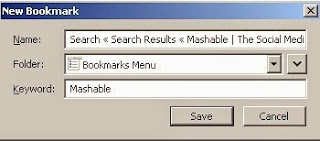
1. One-Click Bookmarking



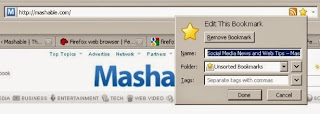
Firefox offers a very fast way to add a site to your bookmarks — simply click on the star icon in the browser's "Location Bar."

Clicking once will add the page to your "Unsorted Bookmarks" folder while clicking twice will open up a window that will allow you to edit where the bookmark should be saved, its title, and any tags (see #2 below).


2. Tag Your Bookmarks for Quick Access
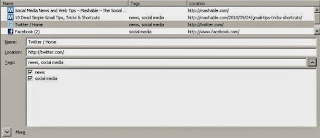

One way of organizing your bookmarks in Firefox is to tag them with keywords. You can either do this as you save them down, or retrospectively by going to the "Bookmarks" menu, selecting "Organize bookmarks," finding the bookmark you want to tag, and adding in the keywords.

Once you've added a word, such as "news" as you can see in the example above, Firefox will offer this as a tag option in future, meaning you just have to tick the box to add it as a tag to another site.

Once you've set up your tags, typing a tag into the Location Bar will bring up all the sites you've tagged with that word, offering quick access to sites you visit often.


3. Shrink Your Icons
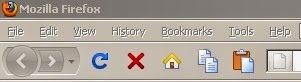


You can change how Firefox's toolbar icons are displayed to give you a little more screen space. This is useful when every pixel counts (as on a netbook screen), or simply to achieve a more minimalist look.

Simply go to the "View" menu, select "Toolbars," hit the "Customize" option and then tick the "Use Small Icons" box.
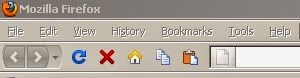
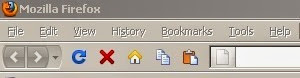

If you want to lose the icons altogether, you can follow the same steps, but hit the drop-down menu next to "Use Small Icons" and select "Text" for a graphics-free toolbar.
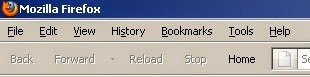


4. Add Icons to the Toolbar



If you carry out the same actions often, such as printing, viewing your history, or managing downloads, there's a way to add more functionality to your toolbar.

Go to the "View" menu, then "Toolbars," then the "Customize" option, and you can drag and drop a number of extra icons to the top of your browser for easy access.

5. Change the Default E-mail Setting
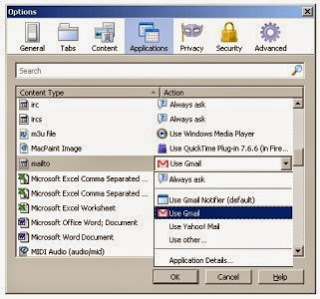


When you click on "Send Link" or "mailto:" links in Firefox, the browser will load up your operating system's default e-mail program (so likely Outlook in Windows or Mail on a Mac). But it's quite often the case that these aren't the mail programs you want.

You can stop the annoyance of Firefox loading up a default mail program by changing your preference in settings, and it's really easy if you use Gmail or Yahoo Mail.

Go to "Tools," "Options," "Applications" and scroll down until you see "Mailto" on the left. Now, just hit the drop-down menu and select the e-mail program you'd like to use in the future. The next time you click on a mail link in a webpage, it will load up your preferred e-mail program.

6. Save a Search Shortcut
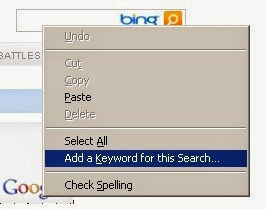


You can save time on sites you search regularly so that you can quickly start a search process on that site from anywhere on the web. To get this set up, right-click on the site's search box and select "Add a Keyword for this Search."

Once you assign a keyword to a site search, you can simply type "keyword + search term" in your Location Bar to search that website. So, for example, typing "Mashable + Social Good" will search Mashable.com for that content, once the keyword is set up. This will save you the extra steps of loading the site, finding the search box and entering the term.


7. Change the Default Font Size
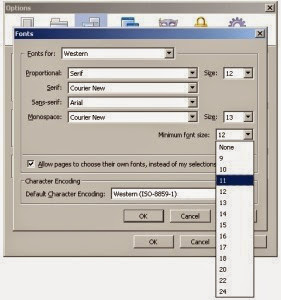


You can ensure you're never left squinting at tiny text on your monitor with an option that forces sites to display text at a minimum font size.

Although it should be noted that this may cause some sites to display erroneously, if textual clarity is more important to you than web design purity, go ahead and make the changes — your optician may thank you for it!

Go to "Tools," "Options," then "Content" and then click on the "Advanced" button next to "Fonts & Colors." You can then select a minimum font size from the drop down menu. Rest easy knowing that you'll never be presented with a sea of 6 pt. text again.

8. Learn Some Shortcut Keys



There is a whole load of mouse and keyboard shortcuts in Firefox, but we've highlighted the ones we find most useful:

Control + Enter — adds .com to the end of text in the Location Bar
Control + Shift + T — reopens the last tab you closed
Alt + D — highlights the text in the Location Bar
Control + Page Up/Down — Moves to previous or next tab
/ — Quick find

9. Set Up Multiple Homepages
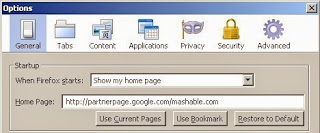


It's true, you can have more than one website as a homepage. You can configure Firefox to load your webmail, favorite news site and social network of choice as it starts.

To set this up, simply load up the sites you want as your homepages, go to "Options," then "General," and then hit the "Use Current Pages" button.

Now, the next time you start Firefox, you'll be productive from the get-go.

10. Clear a Single Site From Your History
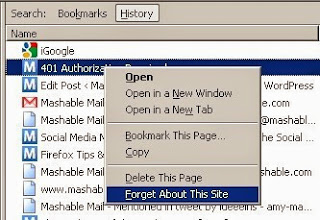


We've all done it — typed "Facbook" instead of Facebook And now the browser loads up the wrong site every time. However, this need not be the case, as Firefox offers a clever way to delete one site from your browsing history rather than forcing you to clear all your recent activity.

To tidy up any types in your web tracks, go to the "History" menu, click on "Show All History," and then type the name of the site you want to get rid of in the "Search History" box. When it has loaded, simply right-click on the site and select "Forget About This Site." Now it's no longer history — it's ancient history.


HTTP Pipelining - Firefox Browser


HTTP Pipelining

Hypertext Transfer Protocol or HTTP is a request/response protocol used to transfer or convey information between clients and servers. In simple words, the client makes an HTTP request and the responding server (Origin Server) which stores the resources or information will respond to it. HTTP Pipelining is a technique in which multiple requests will be send out without waiting for the corresponding responses. By customizing the HTTP Pipelining in Firefox, it helps to speed up the browsing capability. The customizing process can be done step by step as follows:

Run your Firefox. Type in “about:config” into the address bar and press Enter. Scroll down the page and look for “network.http.pipelining“, “network.http.proxy.pipelining” and “network.http.pipelining.maxrequests“. You can also use the filter bar to search for these three entries.


Double click “network.http.pipelining” and “network.http.proxy.pipelining”. The “False” value will automatically change to “True” Value.


Double click “network.http.pipelining.maxrequests”, change the integer value in the pop-up window to 30. By entering 30, this means it will make 30 requests at once to the responding server.


Finally, just select any of the browsers and do a right-click. Select “New” followed by “Integer”. There is a small pop-up box which requires you to enter the preference name. Just type in “nglayout.initialpaint.delay” and set its value to “0″ in a subsequent pop-up box. This signifies to the browser to act immediately on the information it receives without waiting for any lapse of time.


Your Firefox browser will be much faster

Wednesday, March 12, 2014

UNIBEN 2013/2014 Online Clearance Exercise For UTME & Direct Entry Candidates


1.The UTME and Direct Entry Candidates admitted into University of Benin for 2013/2014 academic session are required to login at http://www.uniben.edu, click Waeup Portal with the PUTME/PUDE username and password used for their application and result checking.

2. Click on “Download application slip”. Print it and take note of your ID and Password. You will henceforth, use your ID and Password for subsequent login. Login and print your provisional admission letter.

3. ONLY CANDIDATES WITH THE RIGHT PASSPORT SIZE (1-inch X 1-inch) PHOTOGRAPH USED FOR PUTME & PUDE ALREADY EMBEDDED IN THEIR DOCUMENTS WITH REQUISITE RESULTS TO CLEAR SHOULD PROCEED TO PAY THE TOTAL AMOUNT OF NON-REFUNDABLE ACCEPTANCE FEE ITEMIZED BELOW.

College of Medical Sciences Candidates Other Candidates
N N
Bank/Portal charges - 3000.00 3000.00
Admission clearance - 20000.00 20000.00
ICT Levy - 6000.00 6000.00
Development Levy - 15000.00 15000.00
MTN NET Library - 1000.00 1000.00
College Development fee - 20000.00
-----------------------------------------------------------------------------------------------------------------------
TOTAL : 65000.00 45000.00


Schools/Departments under College of Medical Sciences:

Medicine
Dentistry
Anatomy
Medical Biochemistry
Medical Laboratory Science
Nursing Science
Physiology


4. Optional: You can change your password by clicking “change password” button and you can also change your e-mail and phone number by using “Edit” button.

5. On the Menu, click on “My data” select “Payment” option then click on “Add online payment ticket” button.

6. Select from the Payment Category, Acceptance Fee and click on “Create Ticket” button and then click the link under Payment ID.

7. Click on the “College Pay” button to view payment details and click the “Submit” button to proceed with the payment through Interswitch payment gateway.

8. Select your ATM Card type: Verve or Master Card and supply the card details (card number, expiration date, 4-digit PIN etc) as required.

9. Then click on “PAY” button.

10. If payment is successful, an acceptance slip will appear on the screen. Copy the “Clearance Activation Code” on the acceptance payment slip.

11. Click on “My Data” on the menu and select “Clearance data” option. Enter your “Clearance Activation Code” to open your Clearance/Eligibility form.

12. Fill the Clearance/Eligibility Form appropriately. Scan and upload the following documents:

a. Certificates/ Statements of result
b. Birth Certificate/Declaration of Age
c. Acceptance Letter
d. Guarantor’s Letter
e. Affidavit of Good Conduct
f. Affidavit of Non-Membership of Secret Cults
g. JAMB & UNIBEN offer of Provisional Admission slips

(Please note that affidavits sworn in any Court of Law in Nigeria are acceptable)

Payment of acceptance fee commences Monday 3rd March, 2014

13. At the bottom of the Clearance/Eligibility Form, click on the “Save” button to return later and complete the form OR click on “Save and request clearance” button to finally submit your Clearance/Eligibility Form when you are done. You cannot edit the Clearance /Eligibility Form after final submission.

14. Click on “Download clearance slip” button and print your Clearance/Eligibility slip. Present it with online payment receipt, six (6) copies each of the listed items a to g in item 12, including six coloured passport photographs with red background and WAEC/NECO Scratch Card for checking results online to the clearance officers. The original credentials are for sighting during the physical clearance.

15. Physical clearance commences Monday 24th March to Friday 25th April, 2014 at the University Auditorium Monday to Friday from 9.00am to 5pm each day.

16. Limited accommodations are available for Fresh candidates.

17. Prohibition of Financial Transactions at Clearance Venue: There shall be no financial transactions in whatever form at the Main Auditorium Clearance Venue. Consequently, sales of Faculty Prospectus, Collection of dues, levies and other forms of Payment and Purchases are strictly prohibited. The release of completed and signed Clearance/eligibility form to student should not be tied to any other payment other than the fund paid for clearance.

