Friday, May 22, 2015

Whatsapp Free Browsing on your PHONE

Get One Month free whatsapp chaton your PHONE with MTN NIGERIA Line, by just sending this message

 WAMS to 131 

You will get a reply saying “your request has been processed and you will receive a reply shortly”

thats all and after that you will recieve a successful message

How to Check you whatsapp data

To check your whatsapp data bundle Just dail

*559*2#

Tuesday, May 19, 2015

Procedure to Follow Before you make WhatsApp CALL

Recently, i was discussing with a friend of mine about the whatsapp voice calling and he was like telling me that it is not working that he has tried it lot of time but it didn't work.                           
That why i decide to write this article on procedure to follow before you can make phone call with your whatspp


WhatsApp, the most popular messaging app in the world with over 700 million monthly active users, recently introduced voice calling feature and initially it was available to only a handful of users. However, WhatsApp free voice calling is now available to all Android users.

If you are not an Android user you'll have to wait a while to get this feature. But if you use Android, and haven't yet activated voice calling on WhatsApp, you can follow this procedure.

  1. Download the latest version of WhatsApp for Android from here. The latest version on WhatsApp 2.12.84 as of today    Note: Older versions don't support this feature for all users.                                                                  
  2. Once you have the latest version of WhatsApp installed on your Android phone, ask someone who has WhatsApp calling enabled to make a WhatsApp call to your number.                             
  3. Multiple users have reported that giving a missed call doesn't work. You'll have to receive the call and wait for a few seconds before disconnecting to activate WhatsApp voice calling.                       
  4. When the feature is enabled on your smartphone, you'll see a new three-tab layout on WhatsApp, one each for Calls, Chats and Contacts.

Tuesday, May 12, 2015

STEP TO CHANGE YOUR ANDROID PHONE AND OTHER MTK PHONE IMEI NUMBER TO BLACKBERRY IMEI

Formely Andriod user can browse with bb subscription on their phone but now due to the restriction of mobile network in Nigeria Andriod user can no longer browse with bb plan on thier phone. Here i will show step on how to use your glo bb pland to browse on your andriod phone.
Note: I won’t be responsible for any damage this tutorial cause on your android phone. Also, changing of IMEI is illegal in some countries, and I will not be held responsible if you go to jail.
First and foremost, write down your original imei number and keep it safe
In this tutorial, you will learn how to:
1. Generate your own blackberry imei number and a pin  with pc and phone or you can copy a
    friends bb imei
2. Change your andriod imei number with the bb imei you generated directly on your phone


HOW TO GENERATE A BLACKBERRY IMEI NUMBER

WITH PHONE:
*   Goto google playstore search for bb imei generator and download it
*   After downloading open and tap the Generate Bb IMEI to generate the bb imei number 
 WITH PC
*   Download this software GIP v4.1 here
*   Unrar the file and copy and paste the three .sys files inside the folder to your C:\Windows folder
*   Then double click on GIPv4.1 to open
*   Click on Generate imei, don’t mind the complaint, Click on Continue
*   Write down the Blackberry imei number generated and maybe the pin too (if you feel like eating
      it…lol).


HOW TO CHANGE YOUR ANDROID IMEI NUMBER TO BB IMEI
1.    Go to play store and install Mobileuncle or MTK Engineering tool if you don’t have it
2.    Open the MTK Engineering mode click on MTK Setting.
3.    Move to Connectivity and Click on CDS information
4.    Click the Radio information and you will get phone 1 and phone 2.
5.    To change sim 1 imei number to blackberry, touch phone 1 and in the box, touch the AT+
6.    Once you touch, the Keyboard will popup. In the keyboard type any single letter and use
       backspace to remove the letter you have type. Immediately you will notice a popdown menu
       select the first which is  AT+EGMR=1,7""
7.   Type the Blackberry imei number you generated into the quote "" (e.g
      AT+EGMR=1,7"354872134512xxx"
8.   Click the SEND AT COMMAND
9.   To change sim 2 imei goto step 5 select phone 2 and in the box, touch the AT+
10. Once you touch, the Keyboard will popup. In the keyboard type any single letter and use
      backspace to remove the letter you have type. Immediately you will notice a popdown menu this
      time select the one with  AT+EGMR=1,10""
11. Type the bb imei no. you generated into the quote ""(e.g AT +EGMR=1,10"354872134512xxx")12. Once the pop up display indicates AT command successfully send.
13. Reboot your phone/off switch off the airplane mode and on back  enjoy.
12. IF YOU WANT TO CHANGE BACK YOUR IMEI TO THE ORIGINAL ONE, JUST 
      REPEAT THE PROCEDURE USING YOUR REAL IMEI

you can also add contribution to this post if you think there is something i miss thanks.

Saturday, May 9, 2015

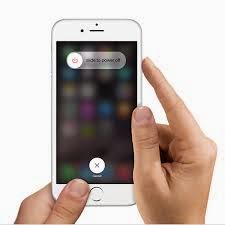
How to Turn On/Off Damaged Power Button on iPhone/iPad


If you're an iPhone or iPad user, then you might not realise just how much you end up using the power on your phone. The home button is essential to navigate through your device, and the use of the volume buttons and the mute switch on the side is pretty obvious too, but if your power button stops working, you can't turn your phone off - or back on again for that matter.
It's also pretty easy to damage, with external factors such as excess humidity or dust that can make it stop working. You can get by without switching off the iOS device, but it is always good to be able to turn the phone off if needed. These simple steps to switch off the device without touching the power button could come in really handy.
  1. Open Settings.
  2. Go to General > Accessibility.
  3. Scroll down to the section labelled INTERACTION and tap on AssistiveTouch.
  4. On the next screen, toggle AssistiveTouch to the green On position.
  5. A white circle with a grey box will appear on screen. Tap this circle to expand it to a big box on screen.
  6. Tap Device.
  7. Tap and hold Lock Screen until the red-and-white power icon appears on screen with the text slide to power off next to it.
  8. Slide the power icon to the right to switch off the iPhone or iPad.
That takes care of switching the device off, but what do you do if you want to turn it back on? If the power button is damaged, how else can you switch on an iOS device? The answer is - charge the device. Yes, just connect it to a power socket or to a USB port on any computer. The device will turn back on in a few seconds. As soon as the white screen with the Apple logo appears, you can disconnect the charger or USB cable.

Thursday, May 7, 2015

How to Remotely Control Your Computer From a Phone or Tablet


Let assume your friend is having problem with is laptop/pc at school and you are not close by, in spite of giving him instruction on what to do for hour, he can’t seem to fix the issue/problem, it would have been easy if you were there to do it yourself. Here is where Team Viewer come in with Team Viewer you can take over his computer from your phone or tablet, and resolve things yourself over the internet. How do you do that? That's where we step in. Read on:

1.      The first thing that's needed is a little foresight. Download and install TeamViewer on your friend computer now, and on your smartphone or tablet too. TeamViewer is free for personal use on Windows, Mac, Linux, iOS, Android, Windows Phone and BlackBerry, and you can find the download links for all these platforms on the TeamViewer page.

2.      Make sure both the computer and the phone are connected to the Internet.

3.      Open TeamViewer on the computer.

4.      Note down the ID and password that's displayed in TeamViewer - or have someone tell it to you on phone.

5.      Fire up TeamViewer on the smartphone or tablet.

6.      Enter the ID and password you noted down earlier in the smartphone/ tablet TeamViewer app.

7.      Tap Remote Control.

8.      Now you'll see the computer's screen on your phone or tablet. You can control it easily now.

TeamViewer works across the Internet, and not just when the two machines are connected to the same network, so you can now troubleshoot problems on your friends' computer right from office, or if you've installed the program on your home desktop, you can access your files and send those emails you were supposed to have saved to your laptop. You can tap on the screen to simulate a mouse-click, and if you tap on a text entry field, a virtual keyboard pops up so you can type.

There can be a little delay in what you're doing on the mobile and what's happening on the computer, depending partly on the speed of both Internet connections, so it's not the same as being there, but if you just want to troubleshoot something urgently, or if you need to get some important work finished, TeamViewer can be a lifesaver.

There are many more remote connection apps that let you control your computer via your phone or tablet, but we choose TeamViewer because it is easy to use, as you can see from the steps above. TeamViewer is also free for personal use, so that's an added advantage.
Which method do you use to control your computer from your smartphone? Let us know via the comments.